
How to Connect Shopify MCP to Claude (2026 Setup Guide)
A step-by-step guide to connecting Shopify MCP to Claude in 2026: the official AI Toolkit for Claude Code, an Admin MCP server for Claude Desktop, plus the auth, scopes, and safety checks store owners need.

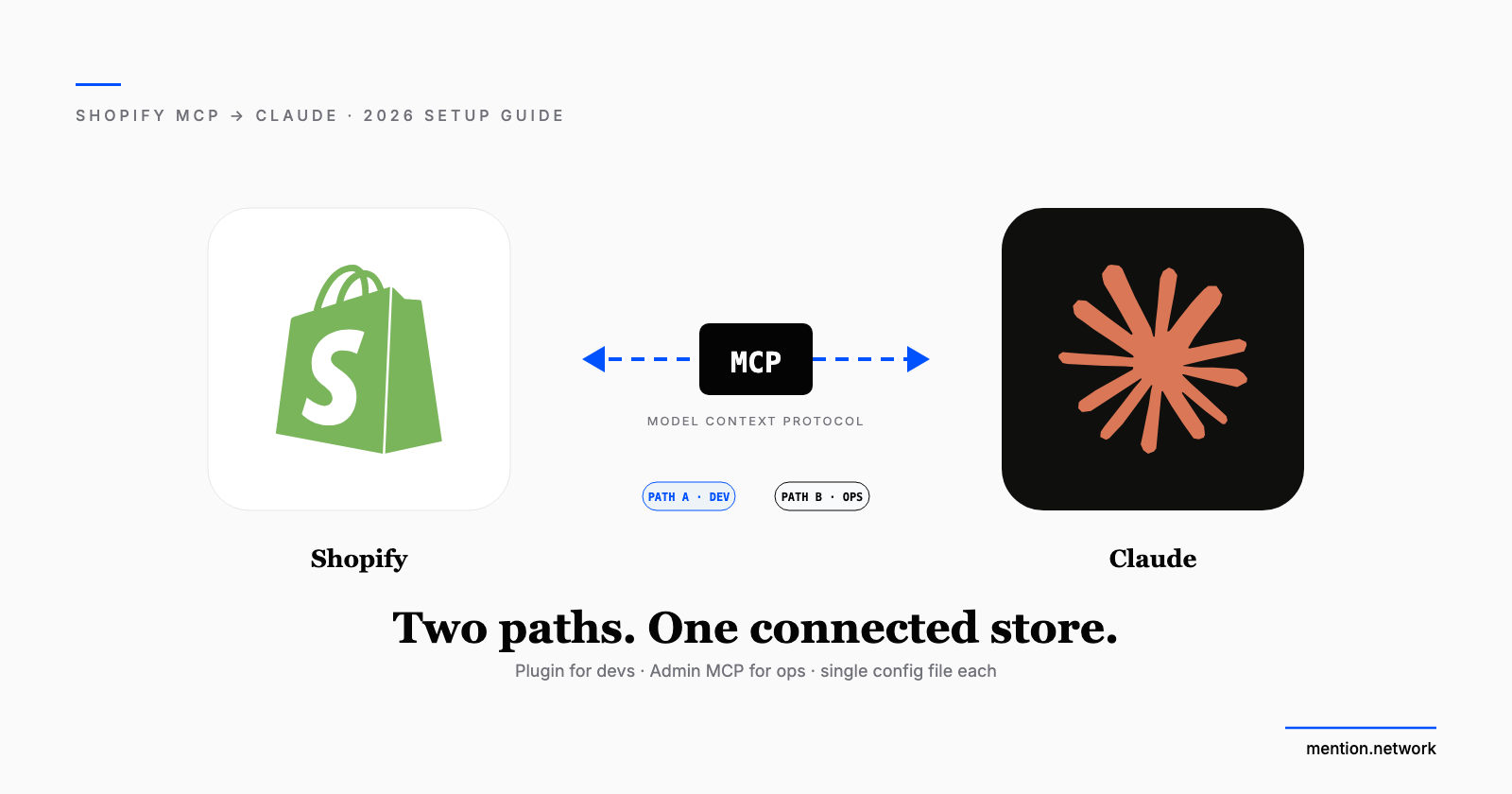
Connecting Shopify to Claude sounds like one task. It's actually two, and picking the wrong one is why most first attempts feel underwhelming.
The official Shopify AI Toolkit ships a "Dev MCP" server that runs locally, needs no login, and gives Claude your developer docs and API schemas. It's built for building. It will not read yesterday's orders or edit a product, because it never touches your live store. To have Claude work with real store data, you connect a Shopify Admin MCP server using an Admin API token. Different server, different setup.
This guide covers both, so you land on the one that matches what you're trying to do. Commands here were verified against shopify.dev and the toolkit's repo on July 8, 2026. Shopify's plugin auto-updates, so if a command drifts, the shopify.dev page is the source of truth.
Jump to:
- Which path do you need?
- Prerequisites
- Path A: the official AI Toolkit in Claude Code
- Path B: an Admin MCP server in Claude Desktop
- Lock it down before you trust it
- Quick fixes for common snags
- Where to go next
Which path do you need?
Two questions decide it.
Are you building an app, theme, or custom integration, and do you want Claude to know Shopify's APIs cold? Use the official Dev MCP in Claude Code. It's the fastest, first-party route, and it's read-only against documentation, so there's nothing to break.
Do you want Claude to actually run the store, reading orders, editing products, checking inventory, in plain language? You need an Admin MCP server with an Admin API token. Claude Desktop is the friendlier home for this if you don't live in a terminal.
You can run both at once. Most store owners end up wanting the Admin server; most developers start with Dev.
Prerequisites
- Node.js 18 or higher. The toolkit requires it.
- A Claude client. Claude Code for the official toolkit, or Claude Desktop for the Admin-server route.
- Your Shopify store, with admin access if you plan to create an API token.
Path A: the official AI Toolkit in Claude Code
This is Shopify's own integration, and it's a single command.
1. Install the plugin. In your terminal, run:
claude plugin install shopify-ai-toolkit@claude-plugins-official
The plugin bundles the Dev MCP server plus documentation search, GraphQL and Liquid validation, and CLI store-execute capabilities, and it updates itself as Shopify ships new features.
2. Or add just the Dev MCP server. If you only want the documentation and schema tools, skip the full plugin and add the server directly:
claude mcp add --transport stdio shopify-dev-mcp -- npx -y @shopify/dev-mcp@latest
Then restart Claude Code. The Dev server runs locally and requires no authentication, which is why it's the safest way to try MCP with Shopify.
3. Confirm it loaded. Ask Claude something only the server can answer, like "search the Shopify Admin API schema for the order object." If it pulls real schema fields, you're connected.
One housekeeping note: the toolkit turns on usage telemetry by default. To opt out, set OPT_OUT_INSTRUMENTATION=true in your environment before launching.
The toolkit officially supports Claude Code, Cursor, VS Code, Codex, and a few other CLIs. It does not document a Claude Desktop setup, which is the next path.
Path B: an Admin MCP server in Claude Desktop
This is the route for reading and editing live store data from a chat window. It has three parts: create a token, point a server at your store, and register that server with Claude Desktop.
1. Create a Shopify Admin API token. In your Shopify admin:
- Go to Settings, then Apps and sales channels, then Develop apps.
- Click Create an app and give it a name like "Claude MCP."
- Open Configuration, then Admin API integration, and select only the scopes you need. For reading orders and products,
read_ordersandread_productsare enough. Addwrite_productsonly if you want Claude editing listings. - Install the app, then open API credentials and copy the Admin API access token. Shopify shows it once, so store it safely.
2. Pick an Admin MCP server. You don't have to build one. Community Shopify Admin MCP servers do the wiring for you, and we rounded up the strongest options in 20 best MCP servers for Shopify and WooCommerce stores. Read-only servers are the safe first pick. Grab the exact run command and arguments from the server's own page, because they vary by project.
3. Register the server with Claude Desktop. Open your claude_desktop_config.json (Claude Desktop, then Settings, then Developer, then Edit Config) and add the server under mcpServers. The shape looks like this, with the specifics filled in from the server you chose:
{
  "mcpServers": {
    "shopify": {
      "command": "npx",
      "args": ["-y", "the-server-package"],
      "env": {
        "SHOPIFY_STORE_DOMAIN": "your-store.myshopify.com",
        "SHOPIFY_ACCESS_TOKEN": "your-admin-api-token"
      }
    }
  }
}
Save the file and fully restart Claude Desktop. The exact env variable names come from your chosen server's docs, so match them rather than copying these verbatim.
4. Verify. In a new chat, ask "list my five most recent orders." If Claude returns real orders, the connection works. If it says it has no such tool, the config didn't load, so recheck the JSON and restart.
Lock it down before you trust it
An MCP server with an Admin token can do whatever its scopes allow, so treat setup like handing someone keys.
- Scope narrowly. Grant
read_scopes first. Add write scopes only when you have a reason, and only the specific ones. - Start read-only. A read-only server can report and analyze but can't change anything, which is the right way to build trust.
- Test on a development store. Point the server at a dev store, run your risky prompts there, and only then switch the token to production.
- Rotate the token if it ever lands somewhere it shouldn't, and delete the custom app if you stop using the integration.
Quick fixes for common snags
- Claude says the tool doesn't exist. The config didn't load. Check
claude_desktop_config.jsonfor a JSON syntax error and restart the app fully. - Authentication errors. The token or store domain is wrong, or the app isn't installed. Re-copy the Admin API access token and confirm the domain ends in
.myshopify.com. - The Dev MCP works but can't see orders. That's expected. The Dev server is documentation-only. Switch to an Admin server for live data.
- Node errors on install. Confirm
node --versionreports 18 or higher.
Where to go next
Once Claude can read your store, the more valuable question is whether AI recommends it. Connecting the plumbing is step one; being the store an assistant actually names when a shopper asks is the goal.
New to the protocol itself? Start with what the Model Context Protocol is and why it matters for stores. Ready to compare servers? See the 20 best MCP servers for Shopify and WooCommerce. And to make your store easier for AI to recommend, read how to optimize your store for ChatGPT Shopping.
Is AI recommending your store? Check free.
Frequently asked questions
What does connecting Shopify MCP to Claude actually let me do?
It depends on which server you connect. The official Dev MCP server gives Claude access to Shopify's developer docs and API schemas for building. A Shopify Admin MCP server, connected with an Admin API token, lets Claude read and edit real store data like products, orders, and inventory.
Do I need to be a developer to connect Shopify to Claude?
The official AI Toolkit runs in Claude Code, which is a command-line tool, so it leans developer. Non-technical store owners can use Claude Desktop with a Shopify Admin MCP server instead, which needs a config file edit and an Admin API token but no coding.
Is it safe to connect my live Shopify store to Claude?
Treat it like installing any app. Grant the narrowest Admin API scopes that do the job, start with read-only access, test on a development store first, and confirm what write actions the server can take before you point it at your live store.
Does this work with WooCommerce too?
Yes, the same pattern applies. See our dedicated guide on how to connect WooCommerce to Claude with MCP: you create a WooCommerce REST API key and register a WordPress or WooCommerce MCP server with Claude Desktop. Automattic ships an official server, with strong community options too.